
Hello There!
Welcome To Our PSLE Science MCQ Mastery Course!
Here’s What You Can Expect.
We will be using Zoom, a virtual classroom tool to deliver lessons to our students without the need for them to be physically present in the classroom.
In order to use Zoom for our live webinar, your child needs a device that meets any of the following technical requirements:
- A stable internet connection (preferably a broadband/fibre connection)
- Headphones & Microphone
Zoom is currently supported on the following operating systems:
- MacOS X (macOS 10.7 or later)
- Windows Operating System 7, 8, 10
- iOS and Android Devices
Installation Instructions:
- If your child is using a Mac computer, please install the software here: https://pique.one/zoommac
- If your child is using a Windows computer, please install the software here: https://pique.one/zoomwindows
- If your child is using an Android device, please install the software: ZOOM Cloud Meetings from the Google Play Store.
- If your child is using an iOS device, please install the software: ZOOM Cloud Meetings from the App Store.
Step 1: Look out for an email titled “🚀 [The Pique Lab] PSLE Science MCQ Mastery Course (Webinar Access Details)”.
🔺 This email is important because it contains your child’s UNIQUE access link.
Do not share the unique access link with anyone else to avoid getting disconnected during the webinar. Each link only admits ONE device.
Step 2: Joining A Virtual Classroom
Your child can join the webinar 15 minutes prior to commencement of each session (for example: if the webinar starts at 4PM, your child can only join the webinar from 3.4PM onwards).
Please join the webinar early to ensure that there are no access issues.
To join the digital webinar, you can either:
(A) Click on the green button in the email that says “Click Here To Open The Webinar“.
or
(B) Open a web browser (example: Apple Safari or Google Chrome) and enter the unique access link that is shown under the green button.
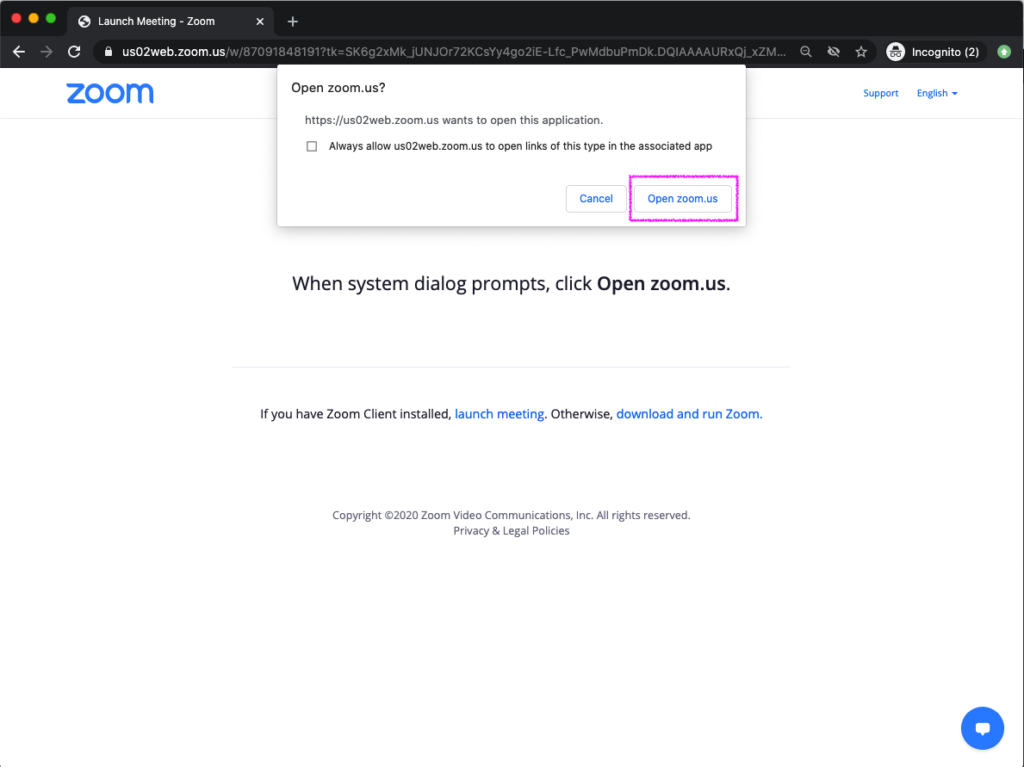
Click on Open zoom.us to launch the webinar.
Need To Leave Before The End of the Lesson?
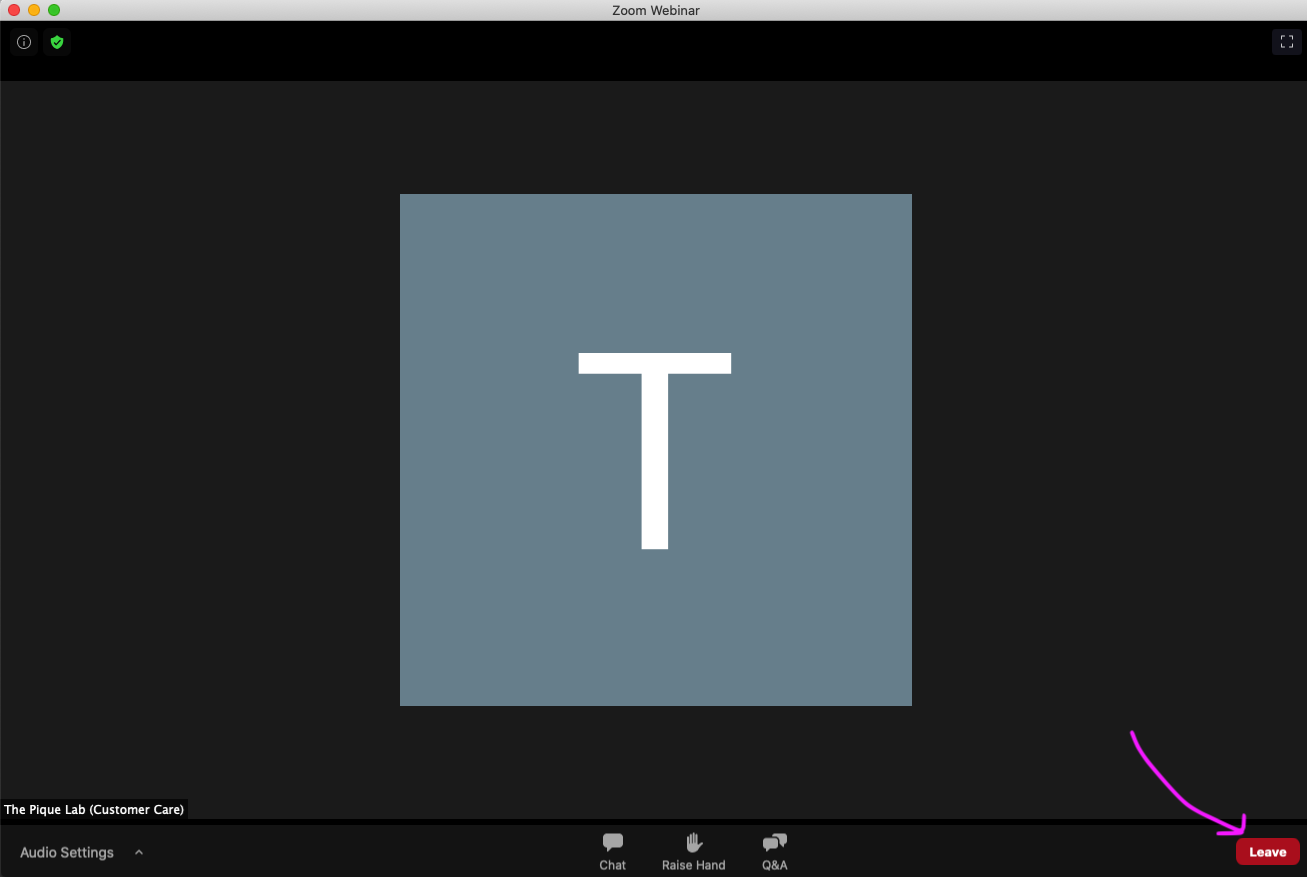
Click on the Leave button on the bottom right of the window to exit from the webinar.
Your child doesn’t have to worry about missing out. We’ll send you a copy of the recorded webinar by 30th May 2021, 7PM once our video team has processed the videos.
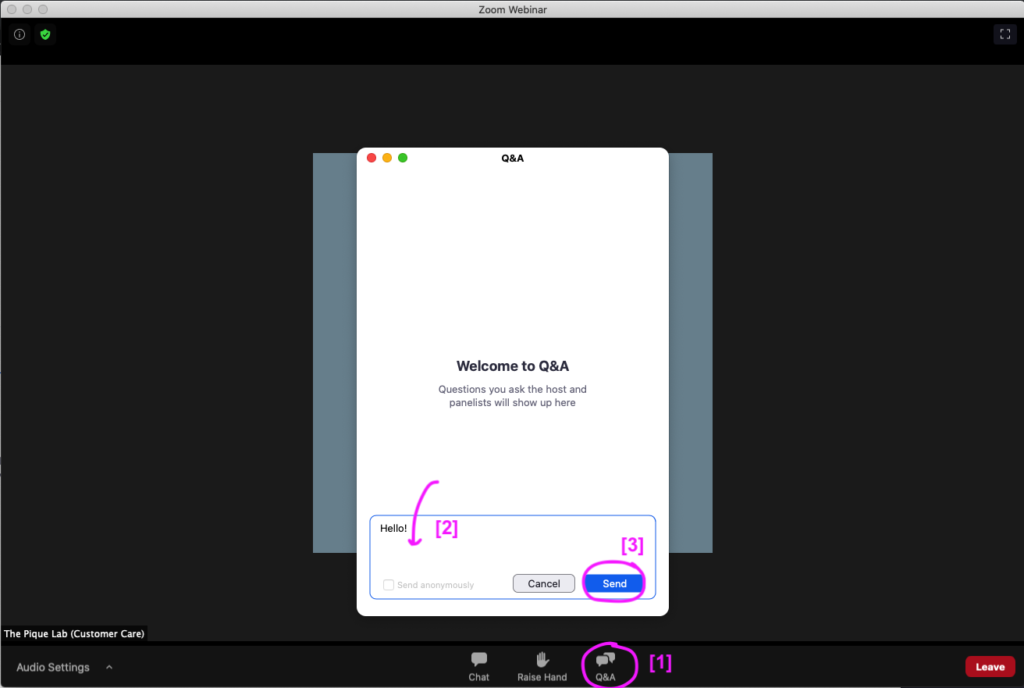
If your child has any questions, he/she may raise them using the Q&A feature.
- To raise a question, click on the Q&A bubble icon at the bottom, marked [1].
- Click on the Message Box, marked [2].
- Type a message and hit ‘Send’ marked [3] or Enter to send the message. It should show up in the Q&A window after it has been sent successfully.
 .
. - A Teaching Assistant will review the question and either answer it via the Chat box or answer it live during the Zoom webinar.
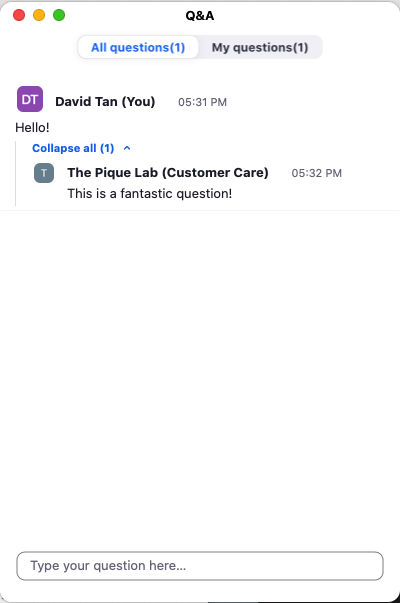
⚠️ If your question remains unanswered (due to time limitations, sorry!), please post them on our Parent Support Group on Facebook:
https://www.facebook.com/groups/279058918884463/
We regret to inform you that we are unable to support parents or students who are unable to use our Facebook support channel.
⚠️ Please remind your child NOT to abuse the Q&A/ chat feature by spamming or sending irrelevant text messages.
Our administrators can choose to revoke a student’s permission to use the Chat/ Q&A feature when necessary.
Please share the following rules with your child before he/she attends the webinar:
1) Your child is expected to prepare the handouts for the lesson & stationery before attending the webinar.
2) Please use headphones or earpieces, so that your child can hear us speak clearly and this also helps us reduce the transmission of environmental noises in a group environment.
3) Please DO NOT misuse the chat box. It is meant for students to ask teachers relevant questions.
In order to have a pleasant and effective learning experience for our students, parents are expected to abide by the following rules:
1) All links and passcodes to our digital webinar are strictly confidential. You are not allowed to share it with any other student, aside from your child, in order to avoid disrupting the lesson.
2) If your child has trouble attending the webinar, please get in touch with our Customer Care team at 6909 1063 or our Live Chat service at https://pique.one/helpdesk.
3) All questions should be asked by the student and not the parent.
For the best digital learning experience, please take note of the following instructions:
(1) Please use a stable internet connection (avoid using a mobile hotspot).
- The presence of network blind spots will affect the network connectivity to your child’s digital learning device. As such, please try to attend the digital lesson on the device as close to your router as possible.
- Please remind other household members to avoid downloading/streaming large files using the home internet. When the network bandwidth within the household is limited, it will affect your child’s streaming experience.
(2) Please join the webinar at least 5 minutes prior to the commencement time to ensure that there are no access issues.
(3) Ensure that your child has the course handouts and stationery prior to the lesson.
(4) After helping your child set up the device for the digital webinar, please leave the room so that your child can focus on the lesson. If your child needs help, please inform him/her to exit the room to inform you.
(5) Technical issues are inevitable in any technologically-driven environment. We can reduce any frustration and anxiety by being well-versed with basic troubleshooting techniques:
🔇 (A) FOR AUDIO ISSUES
-
If your child is unable to hear ANY sound from the device, please make sure that your device has the volume control turned up.
-
If your child cannot hear any audio during the webinar, please click the ‘Leave’ button at the bottom-right of the screen and re-join the meeting using the same unique link.
🖥 (B) FOR VIDEO ISSUES
-
If your child cannot see anything during the webinar (i.e. a black screen), please click the ‘Leave’ button at the bottom-right of the screen and re-join the meeting using the same unique link.
⛔️ (C) UNABLE TO JOIN WEBINAR
- If your child is unable to join, please ensure that your child has NOT used another device to join the webinar. If another device has been used previously, please ensure that you have left the webinar on the device as only ONE active session is permitted per unique link.
- Please also ensure that you have NOT shared the unique link with anyone as this will prevent your child from accessing the webinar.
Frequently Asked Questions
Q: Is there a break during the event?
Yes, we’ll schedule a 10 to 15 minute break in the middle of the session.
Your child should visit the washroom during the break and consume some light snacks if he/she is hungry.
Q: What's the minimum/maximum number of students?
We will accommodate as many students as possible during this final recap session, probably few hundred of them.
In our live webinar, your child can see the speaker and his screen. Conversely, the speakers will NOT be able to see your child’s webcam. This is unlike the regular Zoom classes that your child is used to attending.
Q: Can my child ask questions during the webinar?
Yes, we’ll allocate a time slot for questions to be asked using the Chat function.
Depending on the number of participants & time constraints, we’ll try to address as many questions as possible during the webinar.
For questions that are unanswered, please raise them in our Parent Support Group on Facebook after the webinar.
Q: How many devices can my child use?
Each link only supports ONE device due to service limitations.
Please do not share your unique link with others to avoid getting disconnected during the session.
Q: Can I attend the webinar together my child?
Yes, you may sit next to your child during the webinar session to learn along with him/her if you wish to.
Q: When can I expect to receive the webinar playback?
Our Video Production team will process all of the videos by 30th May 2021. Access to these recordings will be sent to you via email.
Access to the recordings will be revoked with no refund if our portal detects any accounts being shared among multiple users.
Q: Does my child need to be a regular student of The Pique Lab to attend this course?
No, this course is designed for any Primary 6 student who is looking to become sharper at tackling MCQ questions.