Digital Lesson Experience: Student User Guide
Updated: 17th May 2020, 10.00PM
⚠️ ALERT: Due to a service outage on Zoom, we will be temporarily using Google Meet for our virtual classrooms.
(1) All of our classes are hosted using private meeting IDs.
(2) All students will be placed into a waiting room before they are allowed to enter the virtual classroom.
(3) A teacher is required to be present in the virtual classroom before any student can join.
(4) In the event that an unidentified participant is inadvertently added to the classroom, we will be able to remove them.
Hope this clarifies! Stay safe! 💪🏻
In order to use Google Meet for our digital lessons, your child needs a device that meet any of the following technical requirements:
- A stable internet connection (preferably a broadband/fibre connection)
- Headphones & Microphone
- Web Camera (built-in/external)
Usage Instructions:
- If your child is using a Mac/Windows computer, simply enter the link given in the WhatsApp message on your web browser & you will be let into the virtual classroom.
- For the best viewing experience, please use Google Chrome.
- No additional app installation is required on computers to run Google Meet.
- If your child is using an Android device, please install the software: Google Meet from the Google Play Store.
- If your child is using an iOS device, please install the software: Google Meet from the App Store.
Click On The Following Links To Jump To The Section Quickly:
Section 1: Starting A Google Meet Lesson (Setting Up)
Section 2: Interacting In The Digital Classroom (Voice, Video & Chat)
Section 3: House Rules for Parents & Students
Section I: Starting A Google Meet Lesson
Step 1: Look out for a WhatsApp text from our Customer Care team, which will contain your child’s virtual classroom credentials.
When Should Your Child Join?
Start entering the virtual 5 to 10 MINUTES BEFORE the scheduled regular class to get access to the virtual classroom.
If your child’s scheduled slot is from 5PM to 7PM, please be ready by 4.55PM in the virtual classroom, together with the handouts.
Please take note that our teachers are likely to be conducting back-to-back classes, especially during the weekends.
As time is needed to move from one virtual classroom to another virtual classroom, we seek your kind understanding & patience if you see the screen: “Asking To Join… You’ll join the call when someone lets you in.“
Step 2: Joining A Virtual Classroom
– On your computer, open your web browser & type the link given to you in the WhatsApp text.
– Allow microphone & video permissions when prompted:
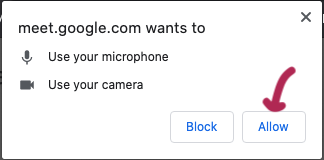
How It Looks On Google Chrome Browser
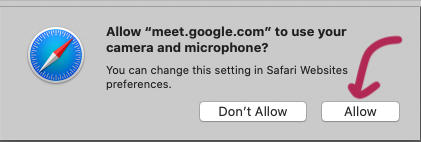
How It Looks On Safari Browser
– Input your screen name: FULL NAME OF STUDENT (see below).
– Ensure that microphone & video is enabled. Ensure that the bubble icons should be clear and NOT in red. (see below)
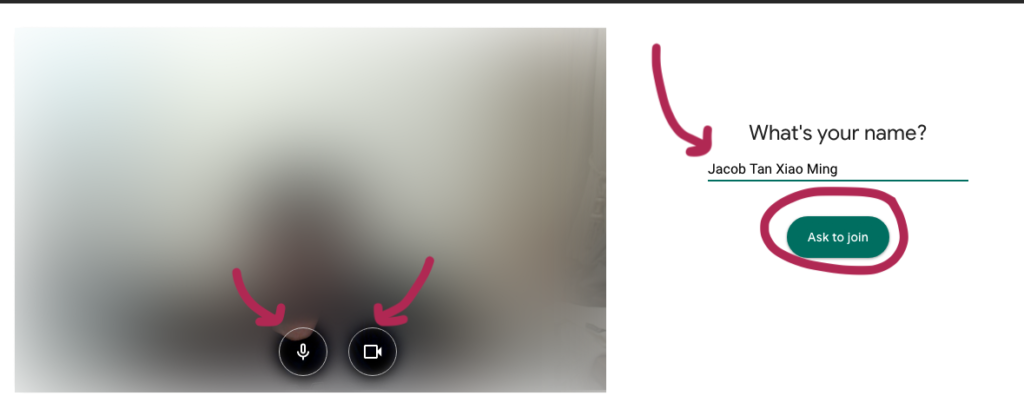
Step 4: If you see this screen, it means that the teacher has not entered the digital classroom yet.
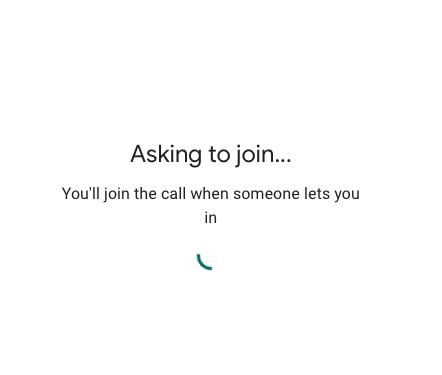
If the teacher has not started the class yet, you may be placed in a ‘Waiting Room‘.
Please be patient while the teacher sets up the virtual classroom.
Step 5: To end a virtual lesson, simply close the web browser or exit the app.
Section 2: Interacting In The Digital Classroom
There is a list of actions that your child can do during the digital lesson experience. However, the instructor can choose to revoke any permissions at any point in time depending on how he/she deems fit.
(A) Voice
Students are allowed to speak into the microphone when the instructor grants permission to students.
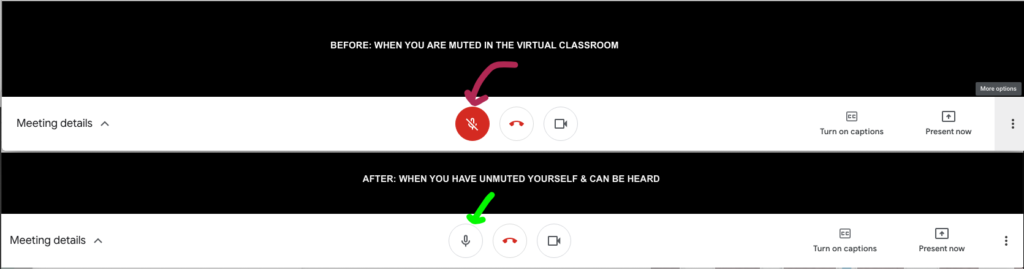
If your child has been granted permission to speak through the microphone, please click on the red microphone bubble to unmute himself/herself.
(B) Video
Students are allowed to broadcast their webcam video when the instructor grants permission to students.
To switch on your web camera, click on the Video Camera icon at the bottom panel:
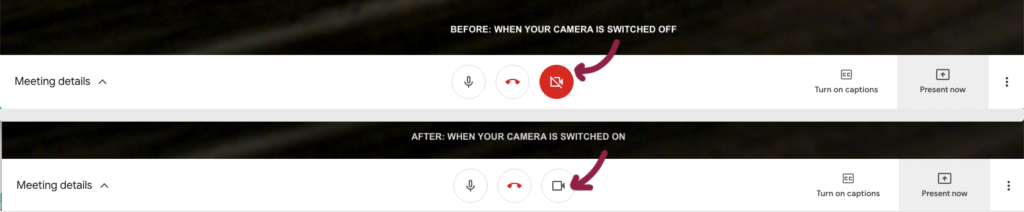
When your web camera is working, you will be able to see yourself on the screen (in the top-right panel of the page).
(C) Chat
Students are allowed to chat with other students and the instructor when the instructor grants permission to students.
- To initiate a chat, click on the Message Bubble Icon on the top right.
- Type your message and hit the Enter button.
Section 3: House Rules for Parents & Students
Please share the following rules with your child before he/she attends a digital lesson with us:
1) Your child is expected to prepare the handouts for the lesson & stationery before attending the digital lesson.
2) Please ensure that your child puts on headphones or earpieces so that he/she can hear the teacher clearly and help to reduce the transmission of environmental noises in a group environment.
3) Please DO NOT misuse the chatbox. It is meant for students to ask teachers relevant questions.
In order to have a pleasant and effective learning experience for our students, parents are expected to abide by the following rules:
1) All links and passcodes to our digital lessons are strictly confidential. You are not allowed to share it with any other student, aside from your child, in order to avoid disrupting the lesson.
2) If your child is inadvertently placed in the wrong class, please reach out to our Customer Care team immediately at 6909 1063.
3) Your child is expected to attend the lesson independently. As such, please refrain from looking over his/her shoulder to avoid distracting other students during the lesson.
4) All questions should be asked by the student and not the parent.
5) If your child is unable to attend the lesson, you will not be able to attend the lesson on your child’s behalf.
6) If you have two or more children attending the lesson at the same time slot, please put them in separate rooms to reduce audio feedback.
7) If your child has other siblings or pets, please keep them away from the student during the digital lesson in order to avoid disturbing other students.
Section 4: Best Practices For Digital Learning Experience
For the best digital learning experience, please take note of the following instructions:
(1) Please use a stable internet connection (avoid using a mobile hotspot).
- The presence of network blind spots will affect the network connectivity to your child’s digital learning device. As such, please try to attend the digital lesson on the device as close to your router as possible.
- Please remind other household members to avoid downloading/ streaming large files using the home internet. When the network bandwidth within the household is limited, it will affect your child’s streaming experience.
(2) Ensure that your child has the handouts and stationery prior to the lesson.
(3) Please remind your child to wear proper attire when attending the digital lesson. This includes other members in the households who may potentially enter your child’s webcam frame.
It is a good practice to inform everyone in the household that your child has a digital lesson going on to avoid any surprises.
(4) After helping your child set up the device for the digital lesson, please leave the room so that your child can focus on the lesson. If your child needs help, please inform him/her to exit the room to inform you.
(5) If your child needs help renaming himself/herself, they may ask the teacher to do so by indicating in the chatbox.
(6) Technical issues are inevitable in any technologically-driven environment. We can reduce any frustration and anxiety by being well-versed with basic troubleshooting techniques:
🔇 (A) FOR AUDIO ISSUES
- Please make sure that you have given Google Meet the permission to use your microphone when you first join the meeting.
- If your child is unable to hear ANY sound from the device, please make sure that your device has the volume control turned up.
- If your child has trouble getting himself/herself heard by the other classmates/teacher, please ensure that the microphone has been enabled when you first start Google Meet & you’re NOT muted (check bottom panel that the microphone bubble is not RED. If it is, click on it).
- Your child may also have been muted by the teacher if it was meant to do so. As such, the microphone will be temporarily disabled.
- If your child is meant to hear or be heard and still cannot hear or be heard, please close the browser and reopen using the link given in the WhatsApp text.
🖥 (B) FOR VIDEO ISSUES
- Please make sure that you have given Google Meet the permission to use the web camera when you first join the meeting.
- If your child does not see himself/herself in the virtual classroom, please ensure that the web camera has been enabled when you first start Google Meet & you’ve started video (check bottom panel that the video bubble is not RED. If it is, click on it).
- If your child is meant to see or be seen and he/she still cannot see or be seen, please close the browser and reopen using the link given in the WhatsApp text.
Section 5: Last Notes By Our Team
If you encounter any technical difficulties, please reach out to our Customer Care team via WhatsApp.
We’d be happy to get on a call with you to solve any challenges during your child’s digital learning experience.
Thank you & stay safe!
💕 Together With You,
The Pique Lab Team